A countdown in an email is an image that gets generated the moment someone opens the message. This guide covers what happens between pasting the timer and the reader seeing it, which type to use, where to put it, how each email client handles it and when you're better off without one. If you just want the timer, the generator below makes one for free, no signup.
Email countdown timers: how they work and how to use them well
In short
An email countdown timer is a GIF that a server generates each time someone opens the message. Email clients don't run JavaScript, so the countdown arrives as an image: it shows the time left at that moment and animates the seconds. It works on any platform that accepts HTML or an image by URL.
Make your own
The generator is already set up for this page. Change what you need and press Create timer.
Live 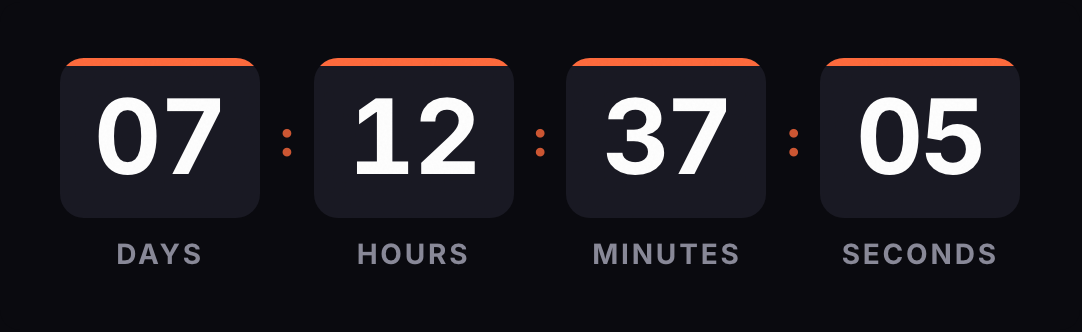
Animated GIF. Recalculated every time the email is opened.
In this guide
- What an email countdown timer is
- How it works under the hood
- Fixed, evergreen or recurring
- Where to place it
- Compatible email platforms
- Outlook, Gmail and Apple Mail
- Privacy
- Accessibility
- When not to use one
What is an email countdown timer?
It's an animated GIF showing the days, hours, minutes and seconds left until a date. In the email code it's a regular <img> tag pointing to a URL on our server, such as https://kauntodaun.com/t/k3x9q2m7ab.gif. What changes is the image that URL returns: it depends on when it's requested.
That's why two people who open the same email a day apart see different times, and both are right.
How does it work under the hood?
- You create the timer. You pick the date, time zone, style and colors. It's saved under an ID and you get the code to paste.
- You paste it into the email. In an HTML block or, if your platform only accepts images by link, as an image with the URL.
- Someone opens the email. Their email client requests the image. Our server works out the time left at that instant and returns a fresh GIF.
- The GIF animates. It holds 30 one-second frames and loops. If it stops because it hits zero, it stays on the final frame.
The response carries headers asking clients not to cache the image, so each open gets the current time. If a reader leaves the email open for more than 30 seconds, they'll see the seconds jump back; reopening it brings a new image.
When the deadline passes, the GIF shows the expired message you chose ("This offer has ended," for example) or a transparent 1-pixel image if you'd rather the space disappear. And if the date changes, you can edit the timer after sending: the change also reaches emails already sitting in inboxes.
Why not use JavaScript?
Because it doesn't run in email. Mailchimp's help center puts it this way: most email clients block JavaScript to protect against viruses, and Mailchimp strips it from the code you paste. A countdown that moves inside an email has to arrive already drawn, and the format that animates almost everywhere without code is the GIF.
How big is the GIF?
Small, because only part of each frame changes. The first frame is complete; the other 29 carry only the rectangle of digits that change, and every frame shares a single color palette (so nothing flickers).
On our server, on October 1, 2026, the default timer (blocks style, medium size) weighed between 17.5 and 19.8 KB depending on the font, and the free styles ranged from 13 to 32 KB. The heaviest Pro style, glass, came in around 47 KB. This site's previous generator served that same default timer at 374 KB.
If you only show days (the d unit), every frame is identical and the GIF collapses into one.
Fixed, evergreen or recurring: which should you pick?
| Type | Counts down to | Good for | Plan |
|---|---|---|---|
| Fixed date | One instant, the same for everyone | Campaigns with a shared end: Black Friday, the last day of a sale, webinar registration | Free |
| Evergreen without a recipient | A duration counted from each open | Giving a sense of the window when there's no real end to measure | Free |
| Per-recipient evergreen | A duration from each person's first open | Automated flows: a welcome email with a 48-hour coupon, abandoned cart | Starter |
| Recurring | The next set time, daily or weekly | "Order by 2 p.m. and it ships today," deals that close every Sunday | Starter |
An evergreen timer without a recipient starts over on every open. If the person opens the email tomorrow, they see 48 hours again. Don't use it for an offer with a concrete end: you'd be telling the reader something that isn't true (more on that below).
A per-recipient evergreen needs your platform to add a tag with each contact's ID to the URL (?rid=). That person's first open sets the start, and later opens show what they have left. Each platform guide lists the tag to use.
Where should it go in the email?
We don't know of any published study comparing countdown placements in email, so this is practical judgment:
- Next to what expires. The timer explains a deadline, so put it beside the offer and the button that claims it. Far from the button, readers have to hunt for it.
- With the date written out. "Ends Sunday, Dec. 6 at 11:59 p.m. ET" in text. It still reads when images are blocked or the GIF doesn't animate.
- No wider than the template. If your email is 600 px wide, keep the timer at 600 or less so it doesn't get cropped on phones.
- On the same background as the section. If the timer's color doesn't match the block, you'll see a frame around it. The transparent option works when the background is a flat color.
- One per email. Two countdowns ticking toward different moments read as a contradiction.
If the deadline is weeks away, seconds add nothing. Drop them and keep days and hours.
Does it work with my email platform?
Yes, if your platform accepts an HTML code block or an image by URL, which almost all do. The generator gives you the code in three formats: HTML (a table holding the image, with & already escaped), a plain URL and a version set up for Klaviyo.
We have step-by-step guides covering which block to use, the tag for per-recipient timers and how to test:
For campaigns with a known date there are ready-made countdowns, like the ones for Black Friday and Cyber Monday.
How does it look in Outlook, Gmail and Apple Mail?
Your ESP delivers the email; whether the GIF animates is up to the reader's email client.
Outlook for Windows. According to Microsoft, Outlook for Microsoft 365, 2021 and 2024 play animated GIFs by default. If the user has Windows animations turned off, they see only the first frame. Klaviyo adds that Outlook 2007, 2010 and 2013 always stay on that first frame. On top of that, classic Outlook blocks automatic picture downloads from the internet out of the box: until the reader clicks "Download Pictures," the timer doesn't show. Our guide to countdown timers in Outlook goes into detail.
Other versions of Outlook. Outlook for Mac also doesn't download internet pictures by default. We haven't found Microsoft documentation on how the new Outlook for Windows, Outlook on the web or Outlook for Mac handle animated GIFs. If your list uses them, test them.
Gmail. Google checks images before displaying them, and senders can't use image loading to find out where the reader is. A countdown that tries to guess the time zone from the IP address isn't reliable in Gmail; ours uses the zone you choose, the same for everyone.
Apple Mail. With Mail Privacy Protection on, Apple downloads remote content in the background through two relays, whether or not the email is opened. Klaviyo warns that countdowns may not render correctly in Apple Mail because of that preloading. With a per-recipient timer, the window may start when the email arrives rather than when it's read.
In every case, the worst outcome with our GIF is a still image showing the time left at open, because the first frame is complete: digits, labels and background. That's why we keep saying to write the date in the copy too.
What data does the engine store?
The minimum needed to count impressions and run per-recipient evergreen timers:
- Each open. We log the time, the timer and, if the URL carries a
rid, a hash of that ID. The impression log doesn't include the reader's IP address or email. Opens are added up every hour and the file is deleted. - The
rid. It's stored as a salted hash (truncated SHA-256), never in plain text. For a per-recipient evergreen timer, that hash is kept alongside the time of the first open. - Unreplaced tags. If the URL arrives with the ESP tag as is (this happens in previews), the engine ignores it.
Even though the engine hashes what it receives, it's better not to put the reader's email address in the image URL: it would travel in plain text and end up in the logs of any server along the way. Use the internal contact ID your platform provides.
Each timer's stats are kept for 30 days on the free plan with an account and 12 months on paid plans.
How do you make it accessible?
Alt text with the date. WCAG 2.2 asks for every informative image to have an equivalent text alternative. The code you copy comes with alt="Countdown timer"; change it to the deadline, for example alt="Offer ends December 6 at 11:59 p.m. Eastern". Alt text doesn't update, so it should say when the offer ends, not how long is left.
The date in the body as well. A screen reader user, someone with images blocked and someone with animations off all get the same information.
Contrast. WCAG asks for a minimum contrast of 4.5:1 for text inside images (3:1 if it's large). The digits usually pass; check the labels (DAYS, HOURS), which are small and use the secondary color.
Motion. WCAG criterion 2.2.2 asks that content moving on its own for more than five seconds can be paused. A GIF inside an email has no such control. What does happen in Outlook for Windows is that it follows the system's animation setting: people who turn animations off see the first frame. Our GIF changes once per second and doesn't flash.
When shouldn't you use a countdown?
When there's no real deadline. A countdown that hits zero while the offer carries on, or that resets, is what the FTC calls a "baseless countdown timer" in its 2022 report on dark patterns. In the EU, the Unfair Commercial Practices Directive lists falsely stating that a product is available only for a very limited time, to push an immediate decision, among the practices that are unfair in all circumstances. Our guide to urgency in email marketing covers this in more depth.
When you plan to extend the offer quietly. If you extend it, say so in the next email. Editing the timer changes the date in every sent email, and the copy in the older ones will still mention the old date.
In emails without a date. A newsletter or a new-content announcement has nothing that expires. A timer there only makes the next one you use less believable.
When the end is months away. A written date is easier to grasp than seconds ticking for 90 days.
Before you schedule any send with a countdown, send yourself a test at a Gmail address and an Outlook address.
Common questions
Do I need to sign up to create a countdown?
No. The generator is free and doesn't ask for an account. A free timer is served with no branding up to 25,000 impressions a month; above that, a small line of text appears under the timer. Paid plans never show it.
What happens when the countdown reaches zero?
The GIF shows the expired message you wrote, such as This offer has ended, or a transparent 1-pixel image if you'd rather it disappear.
Can I change the date after the email has been sent?
Yes. The image is requested from our server on every open, so if you edit the timer, the change also reaches emails already sent. If you created it without an account, your browser keeps the key that lets you edit it.
Why do the seconds jump back if I leave the email open?
The GIF holds 30 seconds of animation and loops. When the email is opened again, a new image with the correct time is requested.
Does it work in Outlook?
Microsoft says Outlook for Microsoft 365, 2021 and 2024 play animated GIFs by default. With Windows animations turned off, or in Outlook 2007, 2010 and 2013, readers see the first frame, which in our GIF already shows the time left at open.
Which time zone does the countdown use?
The one you pick when you create it. The deadline is the same instant for every reader, wherever they are. Put the time and zone in the email copy if you sell in several countries.
Can I build the countdown with JavaScript?
No. Mailchimp's help center says most email clients block JavaScript and that it strips it from the code you paste. That's why email countdowns are images rendered on a server.
Sources
- Mailchimp strips JavaScript from the code block because most email clients block it. mailchimp.com, accessed on
- Outlook for Microsoft 365, 2021 and 2024 play animated GIFs by default; with animations off only the first frame shows. support.microsoft.com, accessed on
- Classic Outlook (Microsoft 365, 2024, 2021, 2019 and 2016) blocks automatic picture downloads from the internet by default; Download Pictures in the InfoBar. support.microsoft.com, accessed on
- Outlook for Mac doesn't download internet pictures by default. support.microsoft.com, accessed on
- Outlook 2007, 2010 and 2013 show the first frame; countdowns may not render correctly in Apple Mail because of preloading. help.klaviyo.com, accessed on
- Apple Mail Privacy Protection downloads remote content in the background, whether or not the email is opened, through two relays. apple.com, accessed on
- Gmail checks images before showing them and senders can't use image loading to learn the reader's location. support.google.com, accessed on
- WCAG 2.2, criterion 1.1.1: non-text content needs an equivalent text alternative. w3.org, accessed on
- WCAG 2.2, criterion 1.4.3: minimum contrast of 4.5:1 for text and images of text (3:1 for large text). w3.org, accessed on
- WCAG 2.2, criterion 2.2.2: moving content that starts automatically and lasts more than five seconds needs a way to pause, stop or hide it. w3.org, accessed on
- The FTC lists a countdown that goes away or resets when it times out as a dark pattern (Baseless Countdown Timer). ftc.gov, accessed on
- EU Unfair Commercial Practices Directive, Annex I point 7: falsely stating that a product will only be available for a very limited time is unfair in all circumstances. legislation.gov.uk, accessed on
- Engine: 30 one-second frames looping, complete frame 0, no-store headers, expired as text or hidden, impression log (time, timer, rid hash), salted rid hash, unreplaced tag ignored, sizes measured on 2026-10-01. Kauntodaun technical documentation, accessed on
- Plans: no branding up to 25,000 impressions a month per timer, per-recipient evergreen and recurring from Starter, editing after send, stats retention. Kauntodaun technical documentation, accessed on
- HTML snippet (img inside a table, alt Countdown timer), editing an anonymous timer after sending. Kauntodaun technical documentation, accessed on