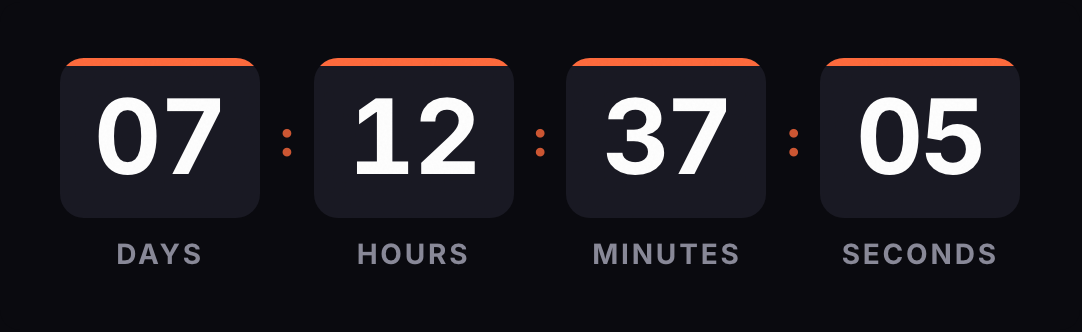
In Mailchimp, a countdown goes into a Code block, which exists in both the new and the legacy builder. Create the timer here, copy the HTML and paste it into that block. Don't upload the GIF to Mailchimp as an image, or it will freeze. For a per-contact deadline, add ?rid=*|UNIQID|* to the URL.
Updated on · AP Agency
In Mailchimp, a countdown goes into a Code block. You paste a table holding the timer image, and that image is requested from our server every time someone opens the email. That's why it shows the time left at that moment, even if the email went out days ago.
Based on Mailchimp's official documentation, reviewed on October 1, 2026.
Make your own
The generator is already set up for this page. Change what you need and press Create timer.
Live
Animated GIF. Recalculated every time the email is opened.
Which block to use
Code block. Mailchimp's help center describes it as the block for adding your own HTML to an email, and it's in both the new and the legacy builder. Mailchimp strips any JavaScript it finds; our code has none, it's a table with an image. The help center doesn't say which plans include it.
Not an uploaded image. If you upload the GIF to Mailchimp, the email points to a copy stored by Mailchimp, frozen on the frame from the moment you uploaded it, and the timer stops counting.
Step by step in a campaign
Build the timer in the generator with your end date and time zone. If your template is 600 px wide, keep the width at 600 or less.
Copy the code from the HTML tab.
In Mailchimp, create or open the email campaign and go into the content design.
Click a Code block, or drag one from the side panel to where you want the timer, for example below the header.
Paste the code into the Code menu.
Save, then check in the preview that the image shows.
The code has its & escaped and the background color set on the table and the cell, so no white edges appear around the image.
Put the deadline in plain text right above or below the timer, for example "Ends Sunday, November 29, at 11:59 p.m. ET." Readers who see only the first frame, or who have images turned off, still get the date. The image's alt text comes set to "Countdown timer"; you can change it in the code.
In an automation
Emails in a Mailchimp automation are designed in the same editor. Add a send email action to the flow, design the email and paste the timer into a Code block, just as in a campaign.
According to Mailchimp, Essentials or higher lets you add up to 4 steps to a flow, and Standard or higher up to 200.
With a fixed date, the automation can send the email on any day: the GIF shows what's left until that date. If each contact needs their own window (a welcome email with a 72-hour coupon, a trial that's ending), use an evergreen timer with the contact's merge tag.
Per-contact countdowns
An evergreen timer counts a duration from a starting point:
Without a contact (free plan). It starts on every open. If the contact opens the email the next day, they see the full window again.
With a contact (Starter plan). That contact's first open sets the start; later opens show what they have left.
For the second option, add the unique ID merge tag to the image URL inside the code:
According to Mailchimp's merge tag guide, *|UNIQID|* returns the contact's unique ID. We prefer it over the email address (*|EMAIL|*) because the email would travel in the image URL. If you do use a tag that may contain symbols, Mailchimp offers *|URL:TAG|* to encode it for a URL.
We store the ID as a hash. If the tag arrives empty or unreplaced, the engine ignores it and counts from that moment.
How to test before you send
Preview with real data. In the preview, turn on live merge tag info to see tags filled in with a contact's data.
Test email. Good for checking the design. Mailchimp doesn't fill in audience merge tags in test emails, so a per-contact timer will count from the open.
Test segment. Mailchimp suggests sending to a small segment when merge tags don't seem to work. Create one with two or three of your own addresses, send, and open each email twice a few minutes apart. The second open should show less time.
Outlook. Open it in desktop Outlook. Microsoft says Outlook for Microsoft 365, 2021 and 2024 animate the GIF when Windows animations are on; otherwise you'll see the first frame with the time left.
Known issues
The timer doesn't move. Check that the code is in a Code block and that you didn't upload the GIF as an image.
Apple Mail. With Mail Privacy Protection, Apple downloads images when the email arrives, opened or not. For a per-contact timer, the window may start at delivery.
Width. The code shrinks the image to fit the column. If you place it in a narrow column and the digits get small, pick the small size or a narrower width in the generator.
One timer, several emails. If you edit the timer after sending, the change shows up in every email that uses it.
The Code block. Mailchimp's help center describes it as the block for adding your own HTML to an email, and it's available in both the new and the legacy builder.
Does it work in Mailchimp automations?
Yes. Automation emails are designed in the same editor, so the Code block works the same way. According to Mailchimp, Essentials lets you add up to 4 steps to a flow and Standard up to 200.
Which merge tag do I use for a per-contact timer?
*|UNIQID|*, which Mailchimp's merge tag guide says returns the contact's unique ID. That keeps the email address out of the image URL.
Why does the timer start from the top in my test email?
Mailchimp doesn't fill in audience merge tags in test emails. The engine receives the raw tag, ignores it and counts from that moment. To test it properly, send the campaign to a small segment of your own addresses.
Does Mailchimp strip anything from the code?
Mailchimp removes any JavaScript from the Code block. Our code has none: it's a table with an image.
Does it show in Outlook?
Microsoft says Outlook for Microsoft 365, 2021 and 2024 play animated GIFs when Windows animations are on. If they're off, readers see the first frame, which already shows the time left.
Code block for adding your own HTML; click it or drag it from the side panel and paste the code into the Code menu; Mailchimp removes JavaScript. mailchimp.com, accessed on
The Code block exists in both the new and the legacy builder; the page lists no plan restriction. mailchimp.com, accessed on
*|UNIQID|* returns the contact's unique ID; *|EMAIL|* the email address; *|URL:TAG|* encodes the value for a URL. mailchimp.com, accessed on
Audience merge tags don't populate in test emails; preview with live merge tag info; send to a small test segment. mailchimp.com, accessed on
Automations: send email action with an email you design; up to 4 steps on Essentials or higher, up to 200 on Standard or higher. mailchimp.com, accessed on
Outlook for Microsoft 365, 2021 and 2024 play animated GIFs by default; with animations off only the first frame shows. support.microsoft.com, accessed on
Apple Mail Privacy Protection downloads remote content in the background whether or not the email is opened. apple.com, accessed on
Engine: rid hashed, empty or unreplaced tag (*|…|*) ignored, rid ignored on the free plan, first request with a rid sets the start. Kauntodaun technical documentation, accessed on