If your countdown sits still in Outlook, it's almost always one of three things: the Outlook version, the Windows animation setting or blocked images. Here's what Microsoft documents about each one, what the reader sees in each case and how to test before you send.
Countdown timers in Outlook: when they animate and when they freeze
In short
Outlook for Microsoft 365, 2021 and 2024 play animated GIFs by default. If the reader has Windows animations turned off, they see only the first frame, as do readers on Outlook 2007, 2010 and 2013. In our GIF that frame is complete and shows the time left when the email was opened.
Make your own
The generator is already set up for this page. Change what you need and press Create timer.
Live 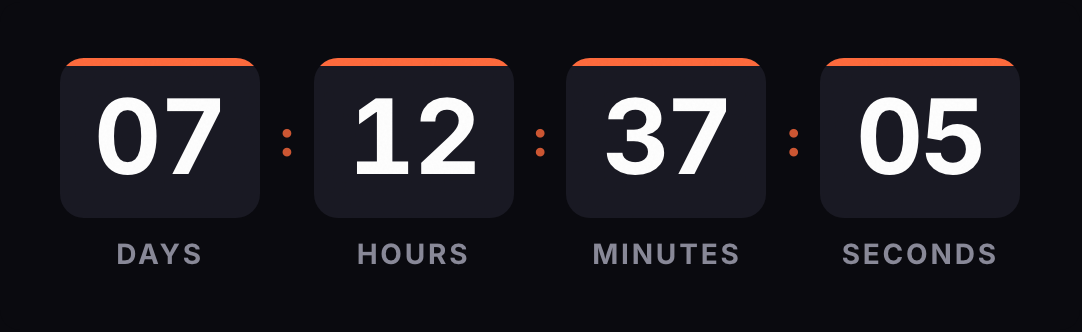
Animated GIF. Recalculated every time the email is opened.
Which versions of Outlook animate the GIF?
| Outlook | What it shows | Source |
|---|---|---|
| Outlook for Microsoft 365, 2024 and 2021 on Windows | The animated GIF, unless Windows animations are turned off | Microsoft |
| Outlook for Office 365 before version 2008 | Depends on Outlook's "Play animated GIFs" check box | Microsoft |
| Outlook 2007, 2010 and 2013 | Only the first frame | Klaviyo |
| Outlook 2016 and 2019 | Not covered by Microsoft's article. Litmus reported in 2019 that Outlook 2019 didn't animate GIFs | Litmus (third party) |
| New Outlook for Windows, Outlook on the web, Outlook for Mac and the mobile apps | No Microsoft documentation on animated GIFs in the pages we reviewed | Your own test |
"Version 2008" is a Microsoft 365 version number, not Outlook from the year 2008.
When Microsoft announced the feature in 2019, Litmus also reported that looping GIFs would play three times and then pause. We haven't found that detail in Microsoft's current help. If it still holds, our 30-second GIF would stop at around the minute-and-a-half mark. Reopening the email requests a new image with the correct time.
Why does my countdown stay on the first frame?
Windows animations are turned off. That's the cause Microsoft gives: Outlook plays animated GIFs by default, and if only the first frame appears, the user has animations disabled. In Outlook for Microsoft 365 version 2008 and later, that's the Windows setting, not an Outlook one. It lives under Accessibility > Visual effects. Assume some of your readers will have it off.
The Outlook version is old. Outlook 2007, 2010 and 2013 stay on the first frame, according to Klaviyo.
Nothing shows at all: images are blocked. Classic Outlook for Windows comes set up not to download pictures from the internet automatically. Until the reader clicks "Download Pictures" in the InfoBar, they see only the alt text. Outlook for Mac doesn't download them by default either. The Outlook apps for iOS and Android do download them, unless the user or their organization has turned on blocking for external images.
How do you turn animations on?
These are Microsoft's steps. Use them to check your own Outlook or to answer a customer who asks why they can't see the timer; you can't change them from the email.
Windows 11
- Press Windows + I to open Settings.
- Go to Accessibility.
- Select Visual effects.
- Turn Animation effects on.
Windows 10. Click Start, type "Show animations" and, under Simplify and personalize Windows, turn on Show animations in Windows.
Outlook for Office 365 before version 2008. Go to File > Options > Advanced and, in the Display section, check Play animated GIFs.
Without changing any setting. Open the message and, on the Message tab, in the Move group, choose Actions > View in Browser. The browser shows the animated GIF.
What does the reader see when only the first frame shows?
In our GIF, the first frame is complete: background, digits, labels and separators. It shows the time left at the moment the email was opened, for example "02 DAYS 14 HOURS 05 MIN 37 SEC." The next 29 frames carry only the digits that change, but the first one is never blank or half drawn.
Once the offer has ended, the GIF is a single frame with your expired message, so Outlook shows it like any other client does. If you chose to hide it, it's a transparent 1-pixel image.
To cover blocked images:
- Write the deadline in the body of the email, near the button.
- Change the alt text in the code to that date. The code comes with
alt="Countdown timer"; something likealt="Offer ends November 29 at 11:59 p.m. Eastern"works for anyone who can't see the image.
Do I need VML or conditional code for Outlook?
No. The code you copy is an <img> tag inside a table, with the background color set on the table (background-color) and on the cell (bgcolor). It doesn't use CSS background images, so you don't need VML or <!--[if mso]> conditional comments.
If you need a different size, change it in the generator (width runs from 200 to 1,000 px) instead of stretching the image with CSS, because a stretched GIF loses sharpness.
How do I test the countdown in Outlook before sending?
- Send a test to an account you open in desktop Outlook for Windows. If the InfoBar appears, click "Download Pictures."
- Check it with animations on and off. Change the Windows setting and reopen the email: with animations off you should see the first frame with digits, not an empty box.
- Open it twice a few minutes apart. The time should have dropped, since each open requests a new image.
- Test the versions with no documentation. The new Outlook for Windows, Outlook on the web and Outlook for Mac, if your list uses them.
- For a per-recipient timer, do a live send. In some test sends the ESP tag arrives unreplaced and the engine ignores it, so the timer counts from that moment. Send the campaign to a list with two or three of your own addresses.
Each platform guide covers its editor's preview and test send: Klaviyo, Mailchimp, HubSpot, Shopify Email, Brevo, Mailjet and ActiveCampaign. For Gmail and Apple Mail, see the complete guide to email countdown timers.
Common questions
Why doesn't my countdown move in Outlook?
According to Microsoft, if Outlook for Microsoft 365, 2021 or 2024 shows only the first frame, the reader has animations turned off in Windows. In Outlook 2007, 2010 and 2013 the GIF always stays on the first frame.
Can I force Outlook to animate the GIF?
No. It depends on the Outlook version and the reader's settings, which you can't change from the email. What you control is making the first frame readable and putting the date in the copy too.
What does the reader see if Outlook blocks images?
The alt text, until they click Download Pictures. Classic Outlook blocks automatic picture downloads from the internet by default, so put the deadline in the alt text and in the body of the email.
Does it work in the new Outlook for Windows?
Microsoft doesn't document how the new Outlook for Windows handles animated GIFs in the help pages we reviewed. Send yourself a test and open it there before the campaign.
Do I need VML or conditional code for Outlook?
No. The code you copy is an image inside a table, with the background color set on the table itself. It doesn't use CSS background images.
What about Outlook for Mac?
Microsoft says Outlook for Mac doesn't download internet pictures by default. We haven't found official documentation on GIF animation on Mac, so test it.
Sources
- Applies to Outlook for Microsoft 365, 2024 and 2021; Outlook plays animated graphics by default; first frame only when animations are disabled; Windows 10 and 11 steps; Play animated GIFs check box before version 2008; View in Browser. support.microsoft.com, accessed on
- Classic Outlook (Microsoft 365, 2024, 2021, 2019 and 2016) blocks automatic picture downloads by default; Download Pictures in the InfoBar. support.microsoft.com, accessed on
- Outlook for Mac doesn't download internet pictures by default. support.microsoft.com, accessed on
- Outlook for iOS and Android download images unless Block external images is turned on. support.microsoft.com, accessed on
- Outlook 2007, 2010 and 2013 show the first frame. help.klaviyo.com, accessed on
- Third-party source (Feb 4, 2019): Outlook 2019 didn't support animated GIFs; in Office 365, looping GIFs would play three times and then pause. litmus.com, accessed on
- Engine: complete frame 0, later frames as partial rectangles, 30 one-second frames looping, expired state as a single frame, width 200 to 1,000 px, unreplaced tag ignored. Kauntodaun technical documentation, accessed on
- HTML snippet: img inside a table with background-color on the table and bgcolor on the cell. Kauntodaun technical documentation, accessed on