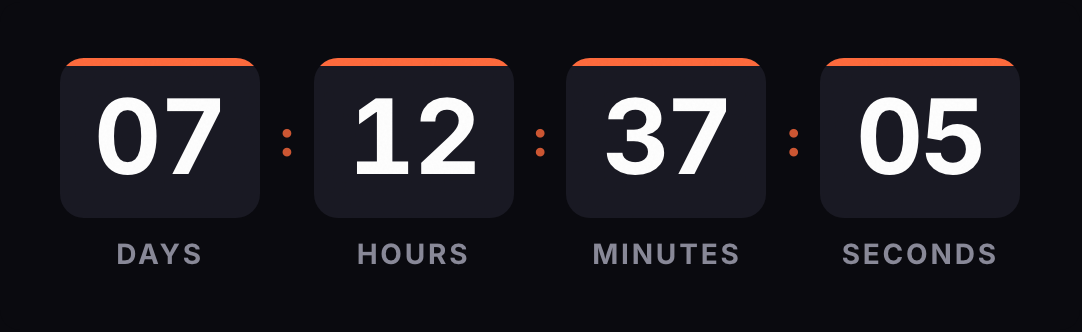
ActiveCampaign has a Timer block in its Email Designer. For a fixed-date offer, it may do the job as is. This page is for the case that block doesn't cover, going by its documentation: a separate deadline for each contact. It's also for anyone who prefers Kauntodaun's styles or wants the same timer across several tools. The timer goes into an HTML block.
Based on ActiveCampaign's official documentation, reviewed on October 1, 2026.
Which block to use
ActiveCampaign's Timer. You pick the end date and time, time zone, background color, size and font, and you can add an image for when it expires. ActiveCampaign points out that the time zone is the one you set, not the contact's. Its documentation doesn't mention per-contact deadlines.
HTML block with the Kauntodaun timer. You paste a table holding the timer image, which is requested from our server every time someone opens the email. ActiveCampaign treats this as an advanced option and its support team doesn't review custom code; ours is a table with one image, no iframes or scripts. The documentation doesn't tie this block to any plan.
Not the image block. The image block works with the Content Manager: you pick an image you've already uploaded or upload one with Add file. ActiveCampaign's help center doesn't offer a way to link an external URL in that block. An uploaded image is a copy with the frame from that moment, so the timer would freeze.
Step by step in a campaign
- Build the timer in the generator with your end date and time zone. If your template is 600 px wide, keep the width at 600 or less.
- Copy the code from the HTML tab.
- In ActiveCampaign, create or open the campaign and go into the Email Designer.
- Open the Blocks dropdown on the right menu, scroll down to HTML and drag it to where you want the timer.
- Click the block to open the code editor and paste your code.
- Click any other block to close the editor, then save.
If you use the Classic Designer, it has its own HTML block and the code is the same.
The code already has its & escaped and the background color set on the table and the cell, so you won't get white edges around the GIF.
Put the deadline in the copy too, for example "Ends Sunday, November 29 at 11:59 p.m. Eastern." Anyone who only sees the first frame, or has images blocked, still knows when the offer ends.
In an automation
Automation emails come from the Send an email action. Creating a new email opens the same Email Designer, so you repeat steps 4 to 6. If the automation is already active, ActiveCampaign asks you to set it to inactive before editing and switch it back on when you're done.
With a fixed date, the automation can send the email on any day and the GIF will show what's left until that date. If each contact needs their own window (a 48-hour welcome coupon, the end of a free trial), use an evergreen timer with the contact tag.
An evergreen timer counts a duration, say 48 hours. What changes is when it starts:
- Without a contact (free plan). It starts at each open. Someone who opens the email the next day sees 48 hours again.
- With a contact (Starter plan). That contact's first open sets the start, and later opens show what they have left.
For the second option, add the tag to the image URL inside the code:
https://kauntodaun.com/t/k3x9q2m7ab.gif?rid=%SUBSCRIBERID%
In ActiveCampaign's list of standard tags, %SUBSCRIBERID% is listed as the Contact ID, with a sample number. We prefer the ID to the email address (%EMAIL%), since the email would travel in the image URL.
ActiveCampaign's help center explains how to insert tags into text blocks, but it doesn't say outright whether they get replaced inside an HTML block. Check it with the test-list send described below. We store the ID as a hash; if the tag arrives empty or unreplaced, the engine ignores it and counts from that moment.
How to test before you send
- Preview a contact. On the campaign summary page, Test and preview > Desktop preview lets you type a contact's email and see their tags. For a per-contact timer, use your own contact: if the preview loads the image with a real customer's ID, their window starts right then.
- Test email. Use it to check the design, sent to up to 5 addresses. ActiveCampaign warns that tags don't render in these tests, so a per-contact timer will look like it counts from the open. You need a verified sending domain, and during the free trial you can only send tests to your own email.
- Live send to a test list. This is the method ActiveCampaign gives for checking tags. Make a list with two or three of your own addresses, send, and open each email twice a few minutes apart. The second open should show less time.
- Outlook. ActiveCampaign notes that Outlook 2007, 2010 and 2013 only show the first frame. Microsoft says Outlook for Microsoft 365, 2021 and 2024 animate the GIF when Windows animations are on.
Known issues
- The timer doesn't move. Check that you pasted the code into an HTML block and didn't upload the GIF to the Content Manager.
- Apple Mail. With Mail Privacy Protection on, Apple downloads images when the email arrives, whether or not it's opened. For a per-contact timer, the window may start at delivery.
- White edges. If you see a border around the timer, make sure the timer's background color matches the section's.
- One timer in several emails. If you edit the timer after sending, the change shows up in every email that uses it.
See also the guides for Brevo, Mailjet, HubSpot and Klaviyo. For dated campaigns, the Black Friday and Cyber Monday countdowns are ready to go.