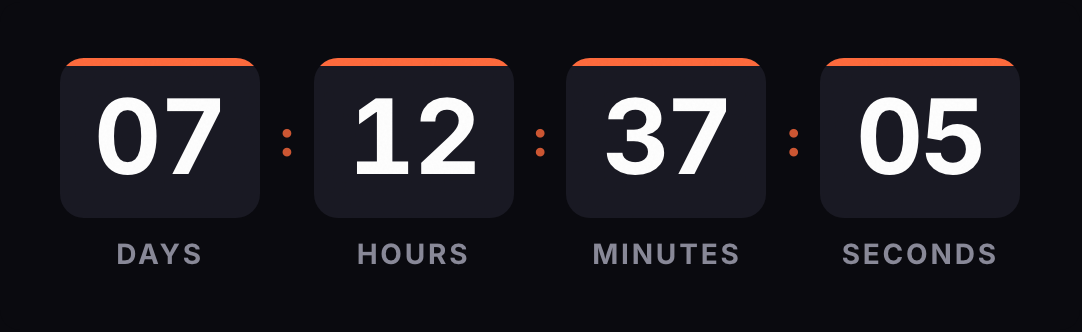
In HubSpot, a countdown goes into an HTML module in the drag-and-drop email editor. Create the timer here, copy the HTML and paste it into that module. Don't upload the GIF as an image: HubSpot would store a copy that never changes. For a per-contact deadline, add ?rid={{ contact.hs_object_id }} to the URL.
Updated on · AP Agency
In HubSpot, a countdown goes into an HTML module in the marketing email editor. You paste a table holding the timer image and HubSpot sends it as is. The image is requested from our server every time someone opens the email, which is why it always shows the time remaining.
Based on HubSpot's official documentation, reviewed on October 1, 2026.
Make your own
The generator is already set up for this page. Change what you need and press Create timer.
Live
Animated GIF. Recalculated every time the email is opened.
Which module to use
HTML module. HubSpot's developer docs list it as the email module for adding your own HTML. It's the one we recommend.
Not the image module. HubSpot's knowledge base explains that the image module pulls the image from the files tool, either uploaded or picked from there. If you upload the GIF, HubSpot stores a copy with the frame from that moment, and the timer stops counting.
Plan. The marketing email editor is available on every plan. HubSpot's documentation doesn't say which plans include the HTML module in marketing emails. Guides from other countdown tools say it takes Marketing Hub Professional or Enterprise, so if the module doesn't show up in your account, check your plan.
Step by step in a marketing email
Build the timer in the generator with your end date and time zone. Keep the width at 600 px or less if your template is 600 wide.
Copy the code from the HTML tab.
In HubSpot, create or open a marketing email in the drag-and-drop editor.
In the modules panel, find the HTML module and drag it where you want the timer, for example below the header.
Paste the code into the module's HTML field.
Check that the image shows in the editor, then save.
The code has its & escaped and the background color set on both the table and the cell, so there are no white edges.
In a workflow
Emails sent by a workflow are created as automated emails. According to HubSpot, those are only available with Marketing Hub Professional or Enterprise.
Create a marketing email and choose the automated sending option.
Add the HTML module with the timer, same as above, and save.
In the workflow, add the action that sends that marketing email.
With a fixed date, the workflow can send it on any day and the GIF will show what's left until that date. For individual deadlines (a trial that expires 7 days after signup, a 48-hour coupon), use an evergreen timer with the contact token.
Per-contact countdowns
An evergreen timer counts a duration from a starting point:
Without a contact (free plan). It starts on every open. If the contact opens the email again the next day, they see the full window again.
With a contact (Starter plan). That contact's first open sets the start; later opens show what they have left.
For the second option, add the contact ID to the image URL inside the code:
HubSpot documents that you reach a contact property with contact. followed by its internal name, and hs_object_id is the internal name of the Record ID. HubSpot's documentation doesn't spell out whether tokens are replaced inside an email HTML module, so check it with a test send (below). If the token arrives unreplaced, the engine ignores it and the timer counts from the open, so nothing breaks.
The alternative, {{ contact.email }}, puts the email address in the image URL, where servers along the way could log it. We hash it, but it's better not to send it.
How to test before you send
Preview as a contact. From the preview and test menu, choose to preview the email as a specific contact. For a per-contact timer, pick one of your own contacts: if the preview loads the image with a real customer's ID, their window starts right there.
Test email. From the same menu, send a test email and, if you like, choose the contact whose data it uses. Open it twice a few minutes apart: with a per-contact timer, the second open should show less time.
Outlook. Open it in desktop Outlook. Microsoft says Outlook for Microsoft 365, 2021 and 2024 animate the GIF when Windows animations are on; otherwise you'll see the first frame with the time left.
Known issues
The timer doesn't move. This is almost always because the GIF was uploaded to the files tool. Paste it again as code in the HTML module.
Can't find the HTML module. It may depend on your Marketing Hub plan (see above).
Apple Mail. With Mail Privacy Protection, Apple downloads images when the email arrives, opened or not. For a per-contact timer, the window may start at delivery.
White edges. Match the timer's background color to the email section's.
One timer, several emails. You can reuse the same timer across a whole sequence. If you edit it later (a new date or new colors), the change shows up in every email that uses it, including the ones already sent. For a different deadline, create a new timer.
We haven't found one in HubSpot's official documentation for marketing emails. The usual approach is to paste an external image that's rendered at open, like ours, into an HTML module.
Which HubSpot plan do I need?
The marketing email editor is on every plan. Automated emails for workflows require Marketing Hub Professional or Enterprise, according to HubSpot. For the HTML module, several third-party guides say you need Professional or Enterprise; we haven't confirmed that.
Why not use the image module?
The image module pulls the image from HubSpot's files tool, either uploaded or picked from there. An uploaded image is a copy: it keeps the frame from the moment you uploaded it, and the timer stops counting.
Which token do I use for a per-contact timer?
{{ contact.hs_object_id }}. HubSpot documents the contact. syntax followed by a property's internal name, and hs_object_id is the internal name of the Record ID. We use it instead of the email so no personal data ends up in the URL.
How do I test a per-contact timer?
Send a test email as a specific contact and open it twice a few minutes apart. The second open should show less time.
Does it show in Outlook?
Microsoft says Outlook for Microsoft 365, 2021 and 2024 play animated GIFs when Windows animations are on. If they're off, the reader sees the first frame, which in our GIF already shows the time left.
Default email modules: email HTML (raw HTML module to add your own HTML) and email image (image, optional link, alignment). developers.hubspot.com, accessed on
The marketing email editor is on all plans; automated emails require Marketing Hub Professional or Enterprise; Preview and test > Preview as contact; Send test email with an optional contact. knowledge.hubspot.com, accessed on
In the image module, the image is uploaded or picked from the files tool; personalization tokens in image links on all plans. knowledge.hubspot.com, accessed on
contact variable: access a property with contact. plus its internal name (for example contact.firstname). developers.hubspot.com, accessed on
The Record ID (hs_object_id) is generated when the record is created and is unique within each object. developers.hubspot.com, accessed on
Third-party source, not confirmed by HubSpot: custom HTML modules in emails require Marketing Hub Professional or Enterprise. sendtric.com, accessed on
Outlook for Microsoft 365, 2021 and 2024 play animated GIFs by default; with animations off only the first frame shows. support.microsoft.com, accessed on
Apple Mail Privacy Protection downloads remote content in the background whether or not the email is opened. apple.com, accessed on
Engine: rid hashed, empty or unreplaced tag ignored, rid ignored on the free plan, first request with a rid sets the start. Kauntodaun technical documentation, accessed on