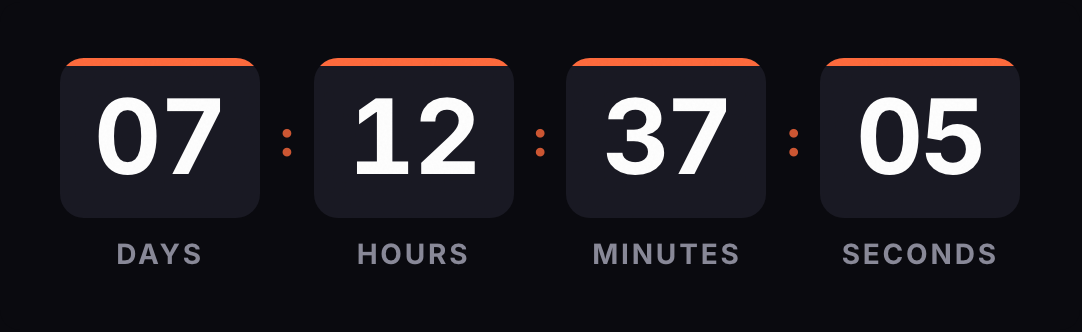
In Shopify Email (which Shopify's help center now calls Shopify Messaging), a countdown goes into a custom Liquid section. Create the timer here, copy the HTML and paste it into that section, in a campaign or an abandoned cart automation. For a per-customer deadline, add ?rid={{ customer.id }} to the URL.
Updated on · AP Agency
In Shopify Email, a countdown goes into a custom Liquid section. You paste a table holding the timer image, and that image is requested from our server every time someone opens the email. That's why it shows the time left at that moment.
Shopify's help center now calls the tool Shopify Messaging and places it under Apps > Messaging. We still say Shopify Email here because that's what almost everyone searches for.
Based on Shopify's official documentation, reviewed on October 1, 2026.
Make your own
The generator is already set up for this page. Change what you need and press Create timer.
Live
Animated GIF. Recalculated every time the email is opened.
Which section to use
Custom Liquid. Shopify lets you add a custom Liquid section inside a template-based email, or code the whole email yourself. The section accepts HTML, so our code goes in as is. According to Shopify, each section is capped at 50 KB and can only be created on a desktop device. Our code is under 1 KB.
Not an uploaded image. If you upload the GIF as a store image, the email points to a copy frozen on the frame from that moment, and the timer stops counting.
Step by step in a campaign
Build the timer in the generator with your end date and time zone. If your template is 600 px wide, keep the width at 600 or less.
Copy the code from the HTML tab.
In your Shopify admin, go to Apps > Messaging and click Create campaign. Pick a template.
In the editor, hover over the spot in the email where you want the timer and click +.
Choose the custom Liquid section and paste the code.
Save, then check in the preview that the image shows.
The code has its & escaped and the background color set on the table and the cell, so there are no white edges around the GIF.
Put the deadline in plain text above or below the timer as well. Readers who see only the first frame, or who have images turned off, still know when the sale ends.
For a store-wide sale, use a fixed-date timer: the end is the same instant for every customer, so you can reuse the same timer in the teaser, the launch and the last-chance email. Each one shows the time left when it's opened. Set the time zone to the one your sale runs on, and say it in the copy if you sell across zones.
In an automation
According to Shopify's help center, custom Liquid works in abandoned checkout, abandoned cart and abandoned browse automations. Open the automation's email, add a custom Liquid section and paste the timer, just as in a campaign.
In these automations a fixed date rarely makes sense, since every customer abandons their cart at a different time. Use an evergreen timer instead, say 24 hours, with the customer variable.
Per-customer countdowns
An evergreen timer counts a duration from a starting point:
Without a customer (free plan). It starts on every open. If the customer opens the email again the next day, they see the full 24 hours again.
With a customer (Starter plan). That customer's first open sets the start; later opens show what they have left.
For the second option, add the customer ID to the image URL inside the code:
customer.id is on the list of customer variables Shopify publishes for custom Liquid. We prefer it over {{ customer.email }} so the email address doesn't travel in the image URL.
We store the ID as a hash. If the variable arrives empty or unreplaced, the engine ignores it and counts from that moment.
How to test before you send
Preview. Check that the image shows in the editor. If it does, the URL is correct.
Test email. Click Send test and enter up to five addresses. Shopify's help center doesn't say whether customer variables are filled in on test sends; if they aren't, a per-customer timer will count from the open.
Real-world test. To check a per-customer timer, abandon a cart with one of your own accounts and wait for the automation email. Open it twice a few minutes apart: the second open should show less time.
Outlook. Open it in desktop Outlook. Microsoft says Outlook for Microsoft 365, 2021 and 2024 animate the GIF when Windows animations are on; otherwise you'll see the first frame with the time left.
Known issues
Can't add the section on mobile. Shopify only allows custom Liquid sections to be created on a desktop device.
Fully coded email. If you choose to code your own email, Shopify requires the unsubscribe variable (unsubscribe_link or unsubscribe_url) and open_tracking if open tracking is on. The limit goes up to 500 KB.
Apple Mail. With Mail Privacy Protection, Apple downloads images when the email arrives, opened or not. For a per-customer timer, the window may start at delivery.
One timer, several emails. If you edit the timer after sending, the change shows up in every email that uses it.
Are Shopify Email and Shopify Messaging the same thing?
Yes. Shopify's help center now calls its email tool Shopify Messaging and places it under Apps > Messaging in the admin. Most people still search for it as Shopify Email.
Which section should I use?
A custom Liquid section, which accepts HTML and Liquid. According to Shopify, it has a 50 KB limit and can only be created on a desktop device. Our code is under 1 KB.
Does it work in abandoned cart automations?
Yes. Shopify says custom Liquid works in abandoned checkout, abandoned cart and abandoned browse automations.
Which variable do I use for a per-customer timer?
{{ customer.id }}, which is on the list of customer variables in Shopify's help center. That keeps the customer's email address out of the image URL.
Can I code the whole email?
Yes, with the code-your-own option. Shopify allows up to 500 KB and requires the unsubscribe variable (unsubscribe_link or unsubscribe_url), plus open_tracking if you have open tracking turned on.
Does it show in Outlook?
Microsoft says Outlook for Microsoft 365, 2021 and 2024 play animated GIFs when Windows animations are on. If they're off, readers see the first frame, which already shows the time left.
The tool is called Shopify Messaging; Apps > Messaging > Create campaign; add a section by hovering and clicking +; Send test to up to five addresses. help.shopify.com, accessed on
Custom Liquid section or a fully coded email; 50 KB per section and 500 KB per email; desktop only; unsubscribe_link or unsubscribe_url required, open_tracking if open tracking is on; customer.id variable available; custom Liquid in abandoned checkout, cart and browse automations. help.shopify.com, accessed on
The custom code editor supports the full customer object. changelog.shopify.com, accessed on
Outlook for Microsoft 365, 2021 and 2024 play animated GIFs by default; with animations off only the first frame shows. support.microsoft.com, accessed on
Apple Mail Privacy Protection downloads remote content in the background whether or not the email is opened. apple.com, accessed on
Engine: rid hashed, empty or unreplaced tag ignored, rid ignored on the free plan, first request with a rid sets the start. Kauntodaun technical documentation, accessed on