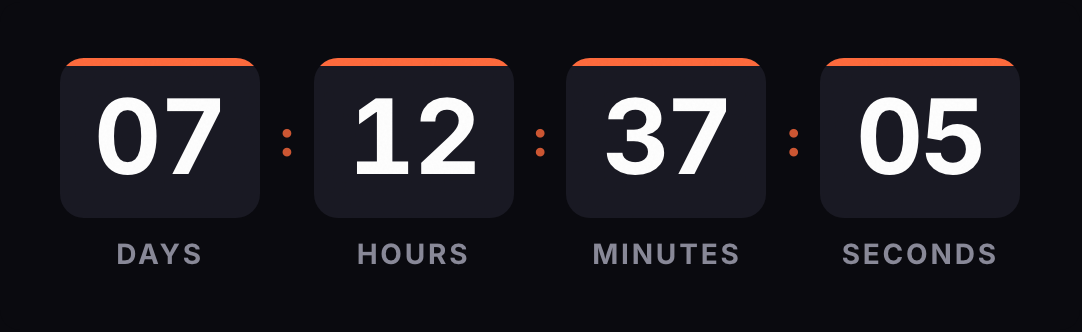
Omnisend has a countdown of its own in the email builder, but only on paid plans and with a single end date for everyone. If you're on the free plan, or each contact needs their own deadline, the route is the one Omnisend's help center suggests itself: an HTML block holding an outside timer. The generator below already has the HTML output selected.
Based on Omnisend's official documentation, reviewed on October 1, 2026.
Omnisend's timer or ours
According to its help center, Omnisend's Countdown timer item is available on the Standard and Pro plans and works in campaigns and automations. You pick the date, the format (DD:HH:MM:SS, HH:MM:SS or MM:SS), the font and the color. When it ends, a fallback image takes its place. It uses your store's time zone and the same end date for every recipient.
If you already pay for Omnisend and your offer ends at the same moment for your whole list, that item is enough. Ours makes sense in these cases:
- You're on the free plan. The native timer isn't available. The HTML block is, and its guide doesn't mention any plan restriction.
- Each contact needs their own deadline. Omnisend states that its timer doesn't create a separate countdown for each contact and points to an outside timer in an HTML block with personalization tags.
- The offer closes in a different time zone from your store's, or you want another look. Each of our timers has its own time zone, and five styles are free.
Which block to use
HTML block. You paste a table holding the timer image, which is requested from our server every time someone opens the email. Omnisend's help asks for images in this block to use absolute URLs that start with https:// and are publicly accessible, which is what our code has. The HTML tags it doesn't support are iframe, script, div, font, video and audio; the generator's code uses none of them.
Image block, no. Omnisend's help describes that block for uploading files (JPG, PNG, GIF or WebP) and doesn't mention external URLs. An uploaded GIF is a fixed copy: it stays on the frame from the moment you uploaded it and never counts down.
Step by step in a campaign
- Build the timer in the generator with your end date and time zone. If your template is 600 px wide, keep the width at 600 or less.
- Copy the code from the HTML tab.
- In Omnisend, open the campaign and go into the email builder.
- Open the Add Elements menu and drag an HTML block to where you want the timer, for example right below the header.
- Click the block and paste the code into the HTML field in the right-hand panel.
- Click Save.
The code already has its & escaped and the background color set on the table and the cell, so you won't get white gaps around the GIF.
Put the deadline in the copy too, close to the timer: "Ends Friday, November 27 at midnight Eastern". Anyone who only sees the first frame, or has images turned off, still knows when it ends.
In an automation
According to Omnisend, the HTML block works the same way in campaigns and automation workflows. Open the workflow, edit the email and repeat steps 4 to 6.
With a fixed date, the workflow can send the email on any day: the GIF is rendered at open and shows what's left until that date. If it goes out after the deadline, the contact sees your expired message.
In an abandoned cart flow or a welcome email with a 48-hour coupon, each contact enters at a different time and needs their own window. That's what the evergreen timer with the contact tag is for.
An evergreen timer counts a duration, say 48 hours. The question is when it starts:
- Without a contact (free plan). It counts from each open. If the person opens the email tomorrow, they see 48 hours again. It adds a sense of urgency but doesn't mark a real end.
- With a contact (Starter plan). That person's first open sets the start, and later opens show what they have left.
For the second option, add the contact tag to the end of the image URL, inside the code you pasted:
https://kauntodaun.com/t/k3x9q2m7ab.gif?rid=[[contact.email]]
Omnisend's personalization guide documents [[contact.email]] among the contact tags, but it doesn't list one for the internal contact ID. That's why the identifier here is the email address. The HTML block guide confirms that dynamic tags work inside the code, with an example placed in an image URL. The downside is that it travels in the image URL and can end up in the logs of servers in between. Our engine hashes it on arrival and never stores it in plain text.
If the tag arrives empty or unreplaced, the engine ignores it and counts from that moment.
How to test before you send
- Preview with a contact. In the builder's preview you can pick a contact to see the tags filled in. For a per-contact timer, pick yourself: if the preview loads the image with a real customer's email, their window may start right then.
- Test email. Omnisend test emails don't use real contact data, and tags without a default value come out empty. The engine gets an empty identifier and counts from the open. The test is good for checking the design, not the per-contact deadline.
- A real trigger. Omnisend notes that an automation can only be tested by triggering it yourself, for example with a test order. Do it with one of your own contacts and open the email twice a few minutes apart: the second open should show less time.
- Outlook. Open the email in desktop Outlook. Microsoft says Outlook for Microsoft 365, 2021 and 2024 animate the GIF when Windows animations are on; otherwise you'll see the first frame, which already shows the time left.
Known issues
- The timer doesn't move. Check that the code is in an HTML block and that you didn't upload the GIF with the image block.
- Apple Mail. With Mail Privacy Protection on, Apple downloads images when the email arrives, whether or not it's opened. For a per-contact timer, the window may start at delivery rather than when the email is read.
- Older Outlook. Outlook 2007, 2010 and 2013 show only the first frame, according to Klaviyo's help center.
- One timer in several emails. If you edit the timer after sending, the change shows up in every email that uses it.
If you also send from another tool, see the guides for MailerLite, Kit, Klaviyo and Shopify Email. For dated campaigns, the Black Friday and Cyber Monday countdowns are ready to go.