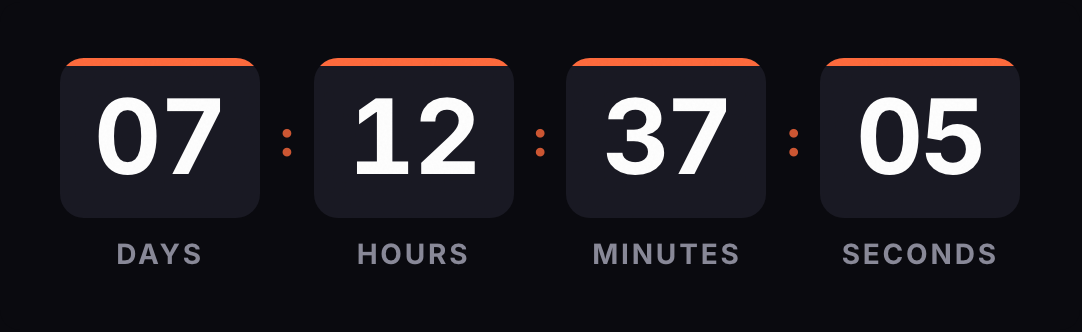
Kit, the platform formerly known as ConvertKit, has its own countdown block with a fixed end date. If your launch closes at the same moment for everyone, it does the job. If each subscriber needs their own deadline, or the offer closes in a different time zone, build the timer here and paste it into an HTML Block. The generator below already has the HTML output selected.
Based on Kit's official documentation, reviewed on October 1, 2026.
Kit's timer or ours
According to Kit's help center, the Countdown Timer block is added from the content block menu and works in broadcasts and sequence emails, as well as in forms and landing pages. It counts down to the date and time you pick, using your account's time zone. It comes in three styles (Plain, Squared or Rounded), with your own colors and a message of up to 60 characters that appears when it hits zero.
Kit flags one catch: if you duplicate an email with a timer and change the timer in the copy, the original changes too.
The help article doesn't mention plan restrictions or per-subscriber deadlines. Ours fits these cases:
- A sequence with its own window. In a sequence, each subscriber gets the email on a different day. "You have 7 days from when you joined" needs a timer that counts for each person, and Kit's help doesn't describe one.
- A different time zone. Each of our timers carries its own, with no change to your account settings.
- More design control. Five free styles, a choice of fonts and four adjustable colors.
Which block to use
HTML Block. Kit doesn't let you edit the email's full HTML, but this block accepts your own code. You paste a table holding the timer image, which is requested from our server every time someone opens the email. Kit's help doesn't mention a plan restriction for this block.
Image from the gallery, no. Kit's help explains how to add images from its gallery and doesn't say whether it accepts an external URL without copying it. If you upload the GIF, the email points to a fixed copy showing the frame from the moment of upload, and the timer won't count down.
Step by step in a broadcast
- Build the timer in the generator with your end date and time zone. If your template is 600 px wide, keep the width at 600 or less.
- Copy the code from the HTML tab.
- In Kit, open the broadcast in the editor.
- Click the + sign on the left (or type /) and choose HTML Block.
- Click Edit, paste the code into the window that opens and click Save.
- Check the preview. The editor saves your changes automatically.
The code already has its & escaped and the background color set on the table and the cell, so you won't get white gaps around the GIF.
Put the deadline in the copy too, close to the timer: "Enrollment closes Monday, November 30 at 11:59 p.m. Eastern". Anyone who only sees the first frame, or has images turned off, still knows when it ends.
In a sequence
Sequence emails use the same editor as broadcasts. Open the sequence, go into the email and repeat steps 4 to 6. According to Kit's pricing page, sequences and Visual Automations are on the Creator and Pro plans; the Free plan includes broadcasts.
With a fixed date, the sequence can send the email on any day: the GIF is rendered at open and shows what's left until that date. That suits a launch that closes on the same day for everyone. If the email goes out after the deadline, the subscriber sees your expired message.
If the window starts when each person enters the sequence, use an evergreen timer with the subscriber tag.
Per-subscriber countdowns
An evergreen timer counts a duration, say 7 days. The question is when it starts:
- Without a subscriber (free plan). It counts from each open. If the person opens the email tomorrow, they see 7 days again. It adds a sense of urgency but doesn't mark a real end.
- With a subscriber (Starter plan). That person's first open sets the start, and later opens show what they have left.
For the second option, add the tag to the end of the image URL, inside the code you pasted:
https://kauntodaun.com/t/k3x9q2m7ab.gif?rid={{ subscriber.email_address | url_encode }}
Kit documents {{ subscriber.email_address }} for the subscriber's email address and the url_encode filter, which turns the @ and other symbols into characters that are safe in a URL. Its personalization guides don't list a tag for the subscriber ID, so the identifier here is the email address. They also don't say whether Kit processes tags inside an HTML Block; the real send in step 3 below will confirm it.
The address travels in the image URL and can end up in the logs of servers in between. Our engine hashes it on arrival and never stores it in plain text. If the tag arrives empty or unreplaced, the engine ignores it and counts from that moment.
How to test before you send
- Preview as a subscriber. Kit lets you view the email as a specific subscriber would get it. For a per-subscriber timer, pick your own address: if the preview loads the image with someone else's email, their window may start right then.
- Preview email. Kit says personalization doesn't work in the preview emails you send yourself: a sample text in square brackets shows up instead of the data. Use it to check the design, not the per-subscriber deadline.
- A real send to yourself. Tag two or three of your own addresses and send a broadcast to them only. Open each email twice a few minutes apart: the second open should show less time.
- Outlook. Open the email in desktop Outlook. Microsoft says Outlook for Microsoft 365, 2021 and 2024 animate the GIF when Windows animations are on; otherwise you'll see the first frame, which already shows the time left.
Known issues
- The timer doesn't move. Check that the code is in an HTML Block and that you didn't upload the GIF as an image.
- Apple Mail. With Mail Privacy Protection on, Apple downloads images when the email arrives, whether or not it's opened. For a per-subscriber timer, the window may start at delivery rather than when the email is read.
- Older Outlook. Outlook 2007, 2010 and 2013 show only the first frame, according to Klaviyo's help center.
- One timer in several emails. If you edit the timer after sending, the change shows up in every email that uses it. Kit warns about the same thing with its own timer when you duplicate emails, so if you want different deadlines, create one timer per email.
If you also send from another tool, see the guides for MailerLite, Omnisend, Mailchimp and Klaviyo. For dated campaigns, the Black Friday and Cyber Monday countdowns are ready to go.