A flash sale lasts hours, not days. The countdown has to read at a glance and move the moment the email opens: hours, minutes and seconds, with no days box. It's a fixed-date timer, the same for your whole list, and it's free.
Countdown timers for flash sales
In short
A flash sale lasts hours, so it calls for a fixed-date timer counting to the close, the same for your whole list, with days hidden so hours, minutes and seconds take the space. At zero it shows Offer ended or disappears. If you repeat the deal daily at the same time, use a recurring timer (Starter plan).
Make your own
The generator is already set up for this page. Change what you need and press Create timer.
Live 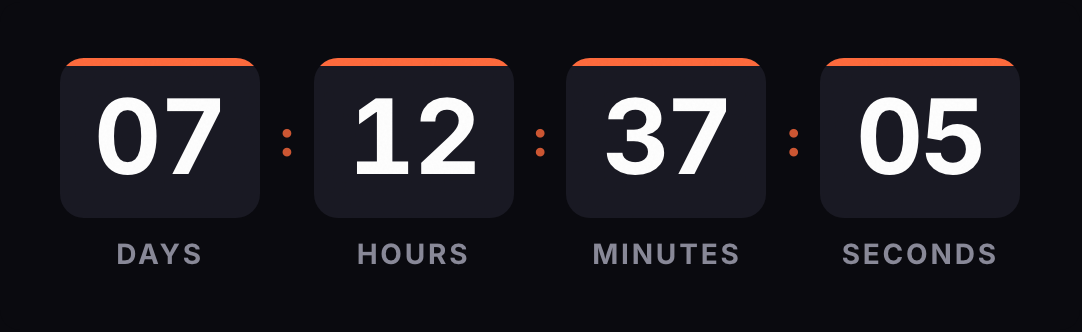
Animated GIF. Recalculated every time the email is opened.
The generator comes with the days hidden, urgency colors and "Offer ended" for when it hits zero. Set your sale's real closing time.
When it works and when it doesn't
It works when the sale really ends at that time:
- A markdown that lasts a few hours, with the discount set to expire at the close.
- One product at a special price until midnight.
- The final stretch of a longer campaign, once there are fewer than 24 hours left.
It doesn't work if the flash sale comes back every week with the same discount. Your list figures that out fast, and after that the timer means nothing. Nor does it work if the discount stays live after the close. In Shopify, for example, a discount with no end date never expires, according to its help center; set the end date to match the timer.
Be careful with very short sales, too. If you send a two-hour offer, a good part of your list will open the email after it's over. The GIF will say so honestly, but the send is wasted. Plan the length around when your audience usually opens.
A fixed timer, no days
The sale ends at the same instant for everyone, so the timer is fixed-date. An evergreen timer counting from each open would give every reader a different end, and nearly all of them would be false.
In the generator, uncheck the days box (units hms). With a six-hour sale the days would always read 00; without them, the digits that change fill the whole width. If you ever run the same offer with more than 24 hours to go, nothing is lost: hours absorb the days, and with 1 day and 6 hours left the timer shows 30 hours.
The seconds are what make a flash sale feel live when the email opens. The GIF has 30 one-second frames and loops; opening the email again renders a fresh one with the correct time.
The time zone is your store's. The end is a single instant: midnight Eastern is 9 p.m. the night before in Los Angeles. If you sell across zones, write the closing time and zone in the copy.
Deals that repeat every day
If you run a deal of the day that changes at midnight, or a Friday deal, you don't need a new timer each time. A recurring timer (Starter plan) always counts to the next close: you choose daily or weekly, the time and, if you like, the days of the week. You can put it in your newsletter template and forget about it.
The engine works out the close in the timer's zone, including on clock-change days. If the time you picked doesn't exist that day (when clocks spring forward), it uses the first valid instant after it.
This only makes sense if the deal really changes every day or every week. A recurring timer on a discount that never changes is the same never-ending flash sale as before.
Sample sequence
This is a suggestion for a one-day sale. Adjust the hours to your offer.
| When | Timer | Why | |
|---|---|---|---|
| Heads-up | The day before, if you announce the start time | Fixed, to the opening | People who are watching know when to come back |
| Launch | When the sale starts | Fixed, to the close | With hours to go, the timer gives context without pressure |
| Reminder | A few hours before the close, to people who haven't bought | The same timer | The image is rendered at open, so it already shows less time |
| Final hour | One hour before the close | The same timer | The moving minutes and seconds are the message |
The last three emails can share the same URL. Exclude people who have already bought from each send: a "final hour" email to someone who just paid is annoying.
Things worth knowing
At zero. The GIF shows "Offer ended" or, if you choose to hide it, a 1-pixel transparent image. If you extend the sale, edit the timer's date: the change reaches emails already sent. If you don't, older emails will say it's over while the sale is still running.
Apple Mail. With Mail Privacy Protection on, Apple downloads images in the background when the email arrives, and Klaviyo warns that countdowns may not render correctly in Apple Mail because of that preloading. For a sale measured in hours, put the closing time in the copy.
Outlook. According to Microsoft, Outlook for Microsoft 365, 2021 and 2024 animate the GIF unless Windows animations are turned off. Outlook 2007, 2010 and 2013 show the first frame, according to Klaviyo. In our GIF that frame is complete and shows the time left at open.
How to set it up in your ESP
A flash sale usually goes out as a campaign. The timer goes in each platform's code or HTML block:
- Klaviyo. An HTML block in the campaign.
- Shopify Email. A custom Liquid section.
- Mailchimp. A Code block.
- HubSpot. An HTML module in the marketing email.
Each guide covers how to test it before you send. For the big dates on the calendar, the Black Friday and Cyber Monday countdowns are ready to go.
Common questions
Why hide the days?
In a sale that lasts a few hours, the days box always reads 00 and takes up room. Without it, the hours, minutes and seconds get bigger in the same width.
What happens if more than 24 hours are left and I've hidden the days?
Hours absorb the days: with 1 day and 6 hours to go, the timer shows 30 hours. Nothing is lost.
What do people see if they open the email after the sale ends?
The expired message, such as Offer ended, or a 1-pixel transparent image if you choose to hide it.
Can I extend the sale?
Yes. Edit the timer's date and the change reaches emails you've already sent, because the GIF is rendered at open. If the email copy states the closing time, announce the extension in another email.
I have a deal of the day that changes at midnight. Do I need a new timer every day?
Not if you use a daily recurring timer (Starter plan): it always counts to the next close at the time you choose, and you can limit it to certain days of the week.
Why do the seconds jump back if I leave the email open?
The GIF holds 30 seconds of animation and loops. Opening the email again requests a fresh image with the correct time.
Does it work in Outlook?
According to Microsoft, Outlook for Microsoft 365, 2021 and 2024 animate GIFs unless Windows animations are turned off. In that case readers see the first frame, which already shows the time left.
Sources
- Shopify: if you don't choose an end date, the discount doesn't expire; end time follows the store's time zone. help.shopify.com, accessed on
- Outlook for Microsoft 365, 2021 and 2024 play animated GIFs by default; with animations off, only the first frame. support.microsoft.com, accessed on
- Outlook 2007, 2010 and 2013 show the first frame; Apple Mail may not render countdowns correctly because of preloading. help.klaviyo.com, accessed on
- Apple Mail Privacy Protection downloads remote content in the background, whether or not the email is opened. apple.com, accessed on
- Gmail scans images before showing them and senders can't use image loading to learn the reader's location. support.google.com, accessed on
- Engine: units as a subset of dhms with cascading (hidden units roll into the next visible one); daily or weekly recurring timers with time and days, DST handled (a nonexistent time moves to the first valid instant after); 30-frame, 1-second looping GIF with a complete frame 0; expired state as text or 1x1 transparent. Kauntodaun technical documentation, accessed on
- Timers can be edited after sending; recurring and per-recipient evergreen from Starter up. Kauntodaun technical documentation, accessed on
- Flash sale preset: Urgency palette, gradient style, medium size, Offer ended. Kauntodaun technical documentation, accessed on