A webinar starts at the same moment for everyone who signed up. That makes it the simplest case for a countdown: a fixed-date timer running to the start of the session, set in the event's time zone. When it hits zero, the GIF can say "We are live."
Countdown timers for webinars and live events
In short
A webinar starts at the same moment for everyone, so it calls for a fixed-date timer counting to the start, set in the event's time zone. The GIF counts to a single instant, so every reader sees the right time left wherever they are. At zero it can show We are live. It's free.
Make your own
The generator is already set up for this page. Change what you need and press Create timer.
Live 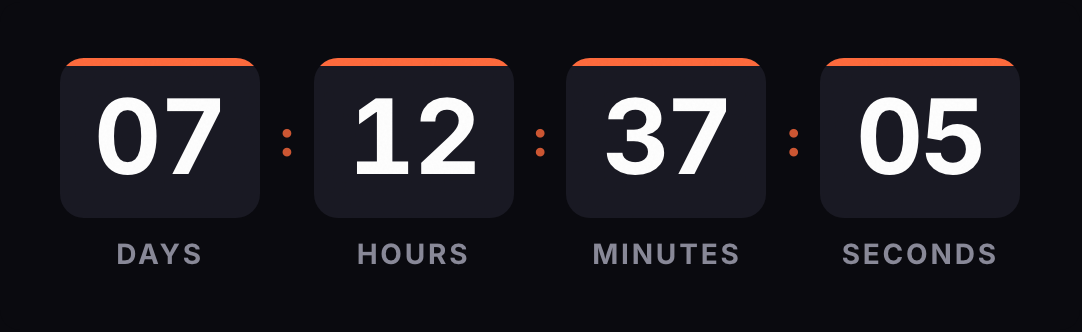
Animated GIF. Recalculated every time the email is opened.
The generator comes with a clean, light style and that expired message. Change the date and time to your event's.
When it works and when it doesn't
It works in the emails that go out before the session:
- The invite. A timer with days and hours gives context: a week to go, or two days.
- Reminders. The same GIF, opened on the day of the event, now shows only hours and minutes.
- Registration cutoff. If seats or signups close before the session, that cutoff is a real deadline too and can get its own timer.
It doesn't work for a recorded webinar that "airs live" on demand. If people can watch whenever they like, a countdown to a made-up start time is a fake deadline, and anyone who gets the invite again on another day with another time will notice.
It also makes no sense if the date isn't locked. If the speaker hasn't confirmed, wait. You can edit the timer after sending, but the email copy will still show the old time.
Fixed date and time zones
The timer counts to a single instant. If your webinar starts Thursday, November 5 at 1:00 p.m. Eastern, that's 10:00 a.m. in Los Angeles and 6:00 p.m. in London, and all three readers see the same time left. The GIF never gets the zone wrong; your copy can.
- Write the time with its zone. "Thursday, November 5, 1:00 p.m. ET." If your audience is spread out, add the time in two or three cities.
- Don't try to guess the reader's zone. Gmail scans images before showing them and doesn't let senders learn where the reader is, so the IP address won't help you localize the time.
- Watch the week the clocks change. In 2026, Europe falls back on October 25 and the US on November 1. Between those dates, New York and London are 4 hours apart instead of 5. A webinar on October 29 at 1:00 p.m. Eastern starts at 5:00 p.m. in London, not 6:00. The timer handles it; check your copy.
If you run the same webinar every week, use a weekly recurring timer (Starter plan). You pick the day and time, and the GIF always counts to the next session, including after a clock change. It fits a welcome email or a newsletter footer inviting people to your Thursday demo.
Sample sequence
This is a suggestion. Adjust the days to your event.
| When | Timer | Why | |
|---|---|---|---|
| Invite | One or two weeks before | Fixed, to the start | With days showing, readers can tell whether it fits their calendar |
| Confirmation | On signup | The same timer | Late signups see what's left at that moment, with nothing for you to change |
| Reminder | The day before | The same timer | The image is rendered at open, so it already shows hours |
| Last call | One hour before | The same timer | Moving minutes nudge people to click the link on time |
| Replay | The next day | Only if the replay expires: fixed, to when you take it down | If the replay stays up for good, there's nothing to count |
One URL covers the first four emails, because they all count to the same moment.
After the live session
Once the timer hits zero, anyone who opens the email sees "We are live." During the event that's exactly what they need. Two days later the same email is still in their inbox, and the message no longer helps.
Timers can be edited after the email is sent. When the session ends, change the expired message to something like "Replay available" (up to 80 characters), or choose to hide the GIF behind a 1-pixel transparent image. The change also reaches emails you've already sent, because the GIF is rendered on every open.
The GIF doesn't carry a link of its own. If the button in your emails points to an event page you control, rather than straight to the video room, you can put the replay on that page and the old links keep working. Then send an email with the replay.
Things worth knowing
Apple Mail. With Mail Privacy Protection on, Apple downloads images in the background when the email arrives, and Klaviyo warns that countdowns may not render correctly in Apple Mail because of that preloading. Always put the date and time in the copy.
Outlook. According to Microsoft, Outlook for Microsoft 365, 2021 and 2024 animate the GIF unless Windows animations are turned off. Outlook 2007, 2010 and 2013 show the first frame, according to Klaviyo. In our GIF that frame is complete and shows the time left at open.
Background. The generator's style is light, meant for white email templates. If your template is dark, change the colors or turn on the transparent background with light digits.
How to set it up in your ESP
The invite usually goes out as a campaign, and the confirmation and reminders as an automation triggered by signup. Either way, the timer goes in the same block:
- HubSpot. An HTML module. Workflow emails are automated emails, which HubSpot limits to Marketing Hub Professional or Enterprise.
- Mailchimp. A Code block, in campaigns and automations alike.
- Klaviyo. An HTML block, the same in campaigns and flows.
- Shopify Email. A custom Liquid section, if you're announcing the session to your store's customers.
If the live session is a product reveal, see the product launch use case too.
Common questions
Which time zone should I pick?
The event's. The end is the same instant for everyone, so the timer shows the right time left in any country. What you need to adapt is the copy: write the time with its zone and, if your audience is spread out, the time in two or three cities.
What do people see if they open the email after the event starts?
The expired message you set, such as We are live, or a 1-pixel transparent image if you'd rather it disappear.
What if the webinar gets pushed back?
Edit the timer's date. The GIF is rendered at open, so the change also reaches emails you've already sent. Announce it in a new email, because the copy in the old ones still has the old time.
I run the same webinar every week. Do I need a new timer each time?
Not if you use a weekly recurring timer (Starter plan): it always counts to the next session, on the day and at the time you choose.
Does it work in Outlook?
According to Microsoft, Outlook for Microsoft 365, 2021 and 2024 animate GIFs unless Windows animations are turned off. In that case readers see the first frame, which already shows the time left.
Why do the seconds jump back if I leave the email open?
The GIF holds 30 seconds of animation and loops. Opening the email again requests a fresh image with the correct time.
Sources
- Gmail scans images before showing them and senders can't use image loading to learn the reader's location. support.google.com, accessed on
- Outlook for Microsoft 365, 2021 and 2024 play animated GIFs by default; with animations off, only the first frame. support.microsoft.com, accessed on
- Outlook 2007, 2010 and 2013 show the first frame; Apple Mail may not render countdowns correctly because of preloading. help.klaviyo.com, accessed on
- Apple Mail Privacy Protection downloads remote content in the background, whether or not the email is opened. apple.com, accessed on
- HubSpot automated emails (workflows) require Marketing Hub Professional or Enterprise. knowledge.hubspot.com, accessed on
- Engine: fixed date computed in the timer's zone; weekly recurring timers with days and time, DST changes on Oct 25, 2026 (Madrid) and Nov 1, 2026 (New York); 30-frame, 1-second looping GIF with a complete frame 0; expired state as text or 1x1 transparent. Kauntodaun technical documentation, accessed on
- Timers can be edited after the email is sent; recurring timers from Starter up. Kauntodaun technical documentation, accessed on
- Webinar preset expired text: We are live. Kauntodaun technical documentation, accessed on